Payments
Taking payment & split bills
When guests are ready, the payment screen settles the check. You can take the full amount or split it however the table wants.
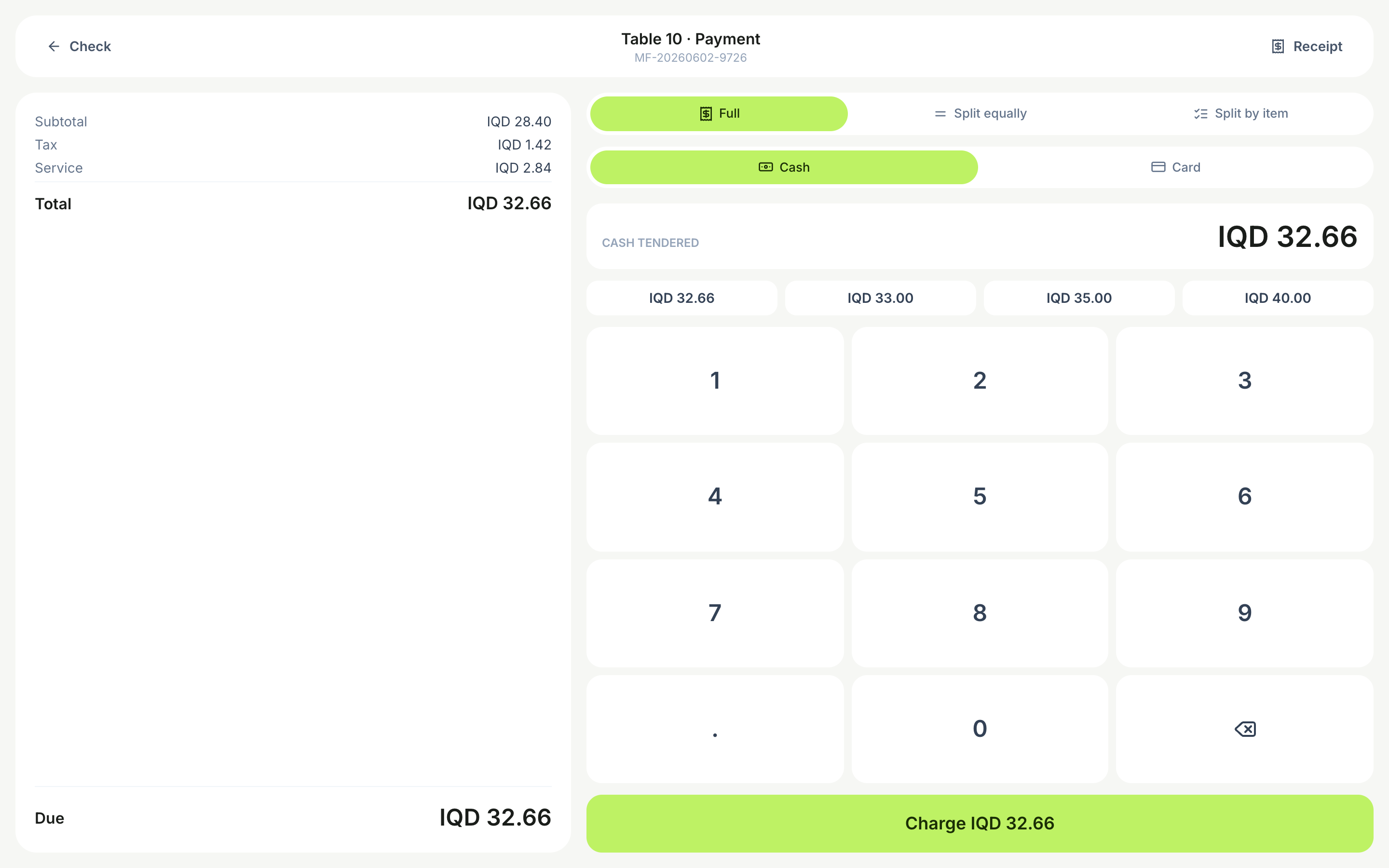
Ways to split
- Full — pay the whole bill in one go.
- Equally — divide across a number of guests.
- By item — each guest pays for what they ordered.
- Custom amount — take a partial payment toward the balance.
Paying on account (Balance)
- Assign a customer to the check, and a Balance tender appears next to cash and card.
- It spends their store credit first, then any house-tab credit limit you've allowed them — the POS shows exactly what's available and blocks anything beyond it.
- Voids and refunds credit the money straight back to their account, with every movement kept in a ledger you can audit.
Settle a check
- 1Open the check and choose “Pay”.
- 2Pick a split method if needed, and a tip preset or custom tip.
- 3Choose the tender (cash, card or another configured method).
- 4Confirm — the remaining balance updates until the check is settled.
Every control on the payment screen
- Tenders — cash (with tendered-amount keypad and automatic change due), card, and any method you’ve added under Setup › Payment methods; plus Balance when a customer with an account is on the check.
- Tips — tap a preset or type a custom amount; tips are tracked per payment and appear in shift and daily reports.
- Cash rounding — if enabled for your currency, totals round to the step you chose and the rounding shows as its own line (see the Cash rounding guide).
- Service charge — applied automatically from your branch settings and always itemised on the bill.
- Receipt — print or reprint from the check or from the payment record afterwards; a Receipt tab shows exactly what will print.
- Partial payments — take any custom amount; the check stays open with a live remaining balance until it reaches zero.
- Refunds — from the payment record, full or partial, with the check and reports updated (and Balance payments credited back to the account).
The payment screen works on a phone too, with a Pay / Bill toggle so you can review the itemised bill and take payment from the same device.
Still need help with this?
Contact support