Inventory
Track stock levels and movements for your key items.
6 min read2 guides in this topic
Inventory keeps an eye on stock so you can spot what's running low before it runs out.
What you can do
- Track stock quantities for inventory items per branch, in a sortable table.
- See a full history of every stock movement — sales, receipts, waste, counts and adjustments — with a running balance.
- Record waste with a reason and see where money is leaking.
- Spot low-stock items at a glance, and set a target (par) level so reorders top up to the right amount.
- Link each item to a supplier so purchasing knows who to reorder from.
- Create prep items — sauces, doughs, marinades you make in batches from other ingredients. Producing a batch consumes the components and adds prep stock, with cost and nutrition rolled up automatically.
Four tabs on the Stock page
- On hand — the master table: item, type, quantity, low/target levels, cost and a Healthy / Low / Out status. Filter by type or search by name/SKU; the stat cards for low and out-of-stock are clickable filters. Click any row to open its detail drawer.
- Counts — run a stock count: press Start count, type what’s on the shelf, then Approve to post only the differences as adjustments. Past counts stay under Count reports, with a CSV export.
- Waste — record spoilage and see a value summary (by reason, over 7 / 30 / 90 days) so you can see exactly where stock — and money — is going.
- Activity — the full stock ledger for the branch: every movement with its source (which order, purchase order or batch caused it), the change, and the balance that resulted. Filter by type, search by item, and export to CSV.
Item types
Each item has a type that tailors the form to what it is — it sets sensible defaults, it never locks anything:
- Ingredient — a raw material used in recipes or preparations (flour, tomato, beef, cheese).
- Packaged item — bought and sold or used as-is (a can of cola, bottled water).
- Preparation — made in-house from other items (dough, sauce, a marinade): a sub-recipe. It gets its own recipe, and its cost per unit is worked out from it.
- Supply — non-food consumables (boxes, cups, napkins, cleaning products). Nutrition and prep options are hidden for supplies.
Every option on a stock item
- Name, unit & quantity — the unit (kg, L, pcs…) is what recipes and movements count in.
- Unit cost — what one unit costs you; this is what recipe costing multiplies.
- Reorder ≤ level — when the item is flagged low and appears in Purchasing’s “needs reordering” list.
- Target level — the par level: how much you want on hand after restocking. Reordering aims to top up to here, not just past the low mark.
- Supplier (optional) — pick from your supplier list so reorders know who to call; manage the list under Inventory › Suppliers.
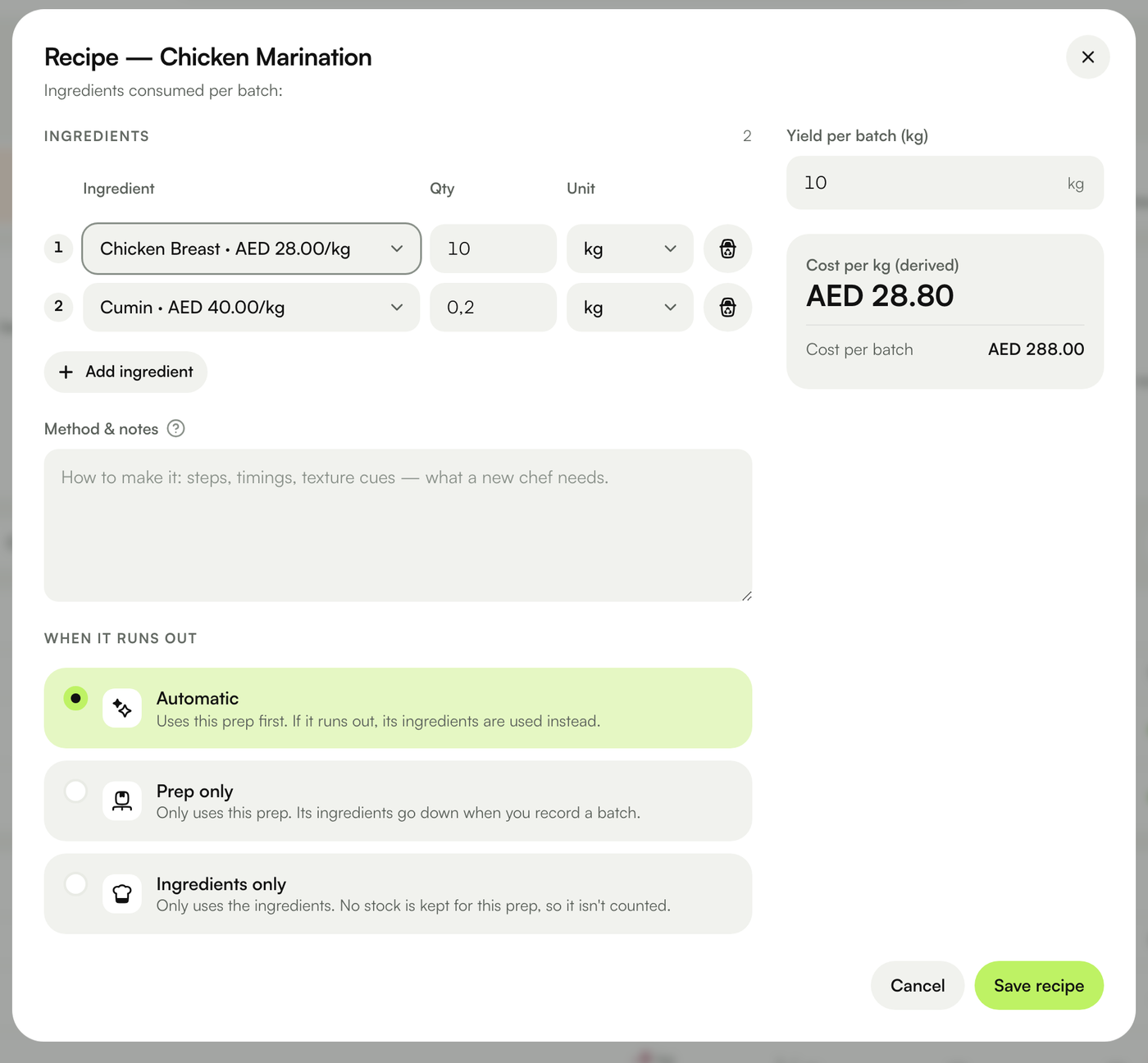
- Prep recipe (a Preparation’s Recipe button, or Prep recipe in its row menu) — the ingredients one batch consumes, the Yield per batch, the method, and When it runs out (below). Cost per unit is derived from the recipe — you don’t type it.
- Shelf life (hours) & storage — Fridge, Freezer, Dry or Ambient. Sets the USE BY on batch labels and drives the expiry alerts; leave shelf life empty and labels print without a use-by.
The item drawer
Click any row on the On hand table to open a drawer with four tabs:
- Details — everything that defines the item, plus its quick actions (adjust, edit, produce…).
- Stock & activity — recent movements with running balances, and a health check: if the ledger and the on-hand number ever disagree, a banner shows the difference and (for owners) a Rebuild from ledger button to realign them.
- Purchasing — the purchase orders that included this item, with prices.
- Used in — the menu recipes and preparations that consume it, so you can see the blast radius before you change anything.
Adjusting stock & recording waste
- Every quantity change is a movement. Nothing edits the number directly — receiving, wasting, counting and adjusting each write a ledger entry you can trace back later.
- Waste always takes a reason — Spoiled, Expired, Damaged, Staff meal, Complimentary, Prep loss or Other — so the Waste tab can show you where the losses are.
- A count sets the total — enter what you physically counted and the system records the difference for you.
- Sales deplete automatically — when a check is paid, every ingredient in the sold items’ recipes is drawn down and shows in Activity as a sale, linked to the order.
When a prep runs out
A dish can use a preparation — the burger bowl uses “Chicken marination”. Each preparation’s recipe has a When it runs out setting that decides what a sale takes:
- Automatic (the default, for existing preps too) — uses the prep first. If there isn’t enough, the missing amount is made from its ingredients on the spot (preps inside preps too). The prep never goes below 0, and your raw stock stays right even on days nobody records a batch.
- Prep only — a sale takes only the prep, which can go below 0; its ingredients go down only when you record a batch in Production.
- Ingredients only — no stock is kept for the prep: every sale takes the ingredients. It’s left out of counts, low/out-of-stock alerts, reordering, the printed stock sheet and batch suggestions, and the Stock list shows it as Not stocked.
- Counting a prep — with Automatic, a count that finds more of a prep than recorded means it was made: approving the count uses its ingredients, and the count sheet shows exactly what before you approve. Ingredients you counted in the same count keep the number you counted.
- In Activity these show as Ran out — made from ingredients on the prep and Used to make … on each ingredient, linked to the order or the count.
Produce a batch, then day-dot it
- 1Open “Produce batch” on a preparation and choose how many batches — the dialog shows exactly what stock it will add, what it will consume, and the current derived cost.
- 2Keep “Print batch labels × N” on and the stickers print as you confirm: a big USE BY bar (TODAY / TMRW / date), who made it, storage, quantity and a batch code like P-250718-041. (Printer setup lives under POS › Printing; without a label printer they print compactly on the receipt printer.)
- 3Reprint the newest batch's sticker any time from the item row.
- 4The “Use first” card at the top of Inventory › Stock (and on Production › Today) lists anything past or within 24 hours of use-by — Discard stamps the batch and writes off the amount you confirm as waste (pre-filled, editable, capped at what's on hand).
Where to find it
- 1Open Inventory › Stock.
Guides in this topic
Was this helpful?