Taking orders
Open checks, add items, assign seats and fire courses to the kitchen.
2 min read3 guides in this topic
The Service screen is home base for staff. From here you open a check on a table, build the order, and fire it to the kitchen — all of it at once, or course by course.
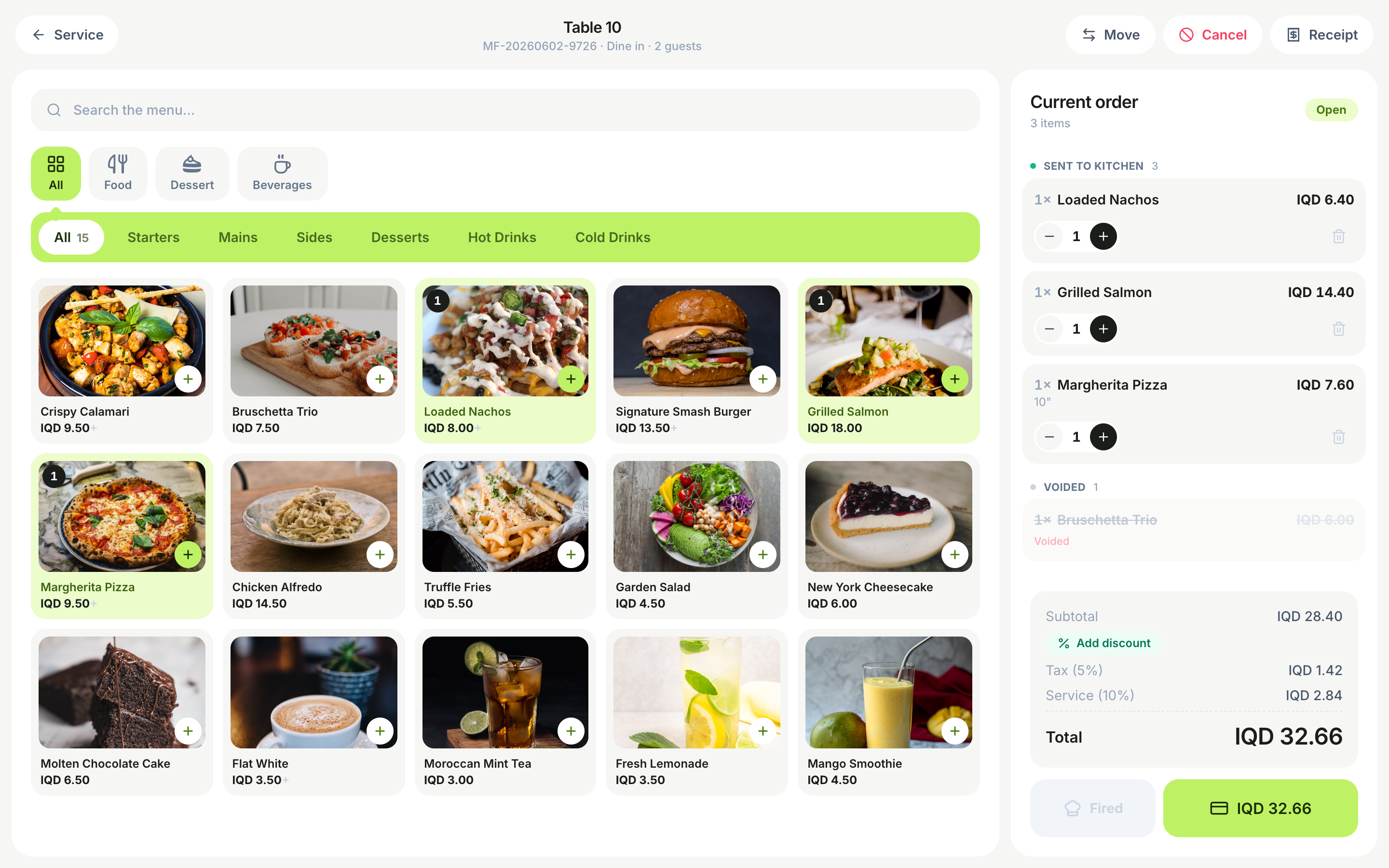
The order flow
- 1On Service, tap a free table, tap how many guests are seated, and press Open check. For a counter order use New takeaway or New delivery on those tabs.
- 2Tap dishes to add them. A dish with options opens a sheet: pick the size, add-ons and removals, how many, and a note for the kitchen, then press Add.
- 3New lines wait under Not sent. Press Fire to send them to the kitchen; they move under Sent.
- 4Press Pay when the table is ready. If something isn’t sent yet, the POS asks Send to kitchen first? — Fire & pay or Pay anyway.
Everything on the add-item sheet
- Variant — one choice from each size/style group (Small / Large…), with its price shown.
- Add-ons — any number of paid extras.
- Remove ingredients — “No onion”-style toggles, available on ingredients the recipe marks removable. Removals print on the ticket and are skipped from stock counts.
- Quantity and a Note for the kitchen.
- Search — type a dish name or an item code; every category is searched.
What you can do to a line or a check
- Tap a line for its tools: Discount, Free (a comp), Note (before it’s sent) and Void.
- Void — pick how many and why, and whether the ingredients go back to stock or are recorded as waste (already made). A sent line’s void goes to the kitchen with Fire void to kitchen, so the cooks know to stop.
- Move or merge (in the check’s More menu) — move the Whole check or Some items to another table, or merge them into another check.
- Adjust bill — service, an order discount and fees for this check.
- Guest orders — items guests send from the QR menu arrive flagged Guest request, not sent: staff fire them (or void them).
- Add customer — attach a saved customer to the check for accounts, loyalty and their POS badges (VIP / allergy / birthday).
On a phone
- The check folds into a bar at the bottom that counts what’s on it and what’s not sent; tap Open order to see it, fire it or pay.
- Everything reaches the kitchen the moment you fire.
TipLines stay under Not sent until you fire them, so you can build a full round and send it in one go — or fire starters now and mains later. How the order screen looks (seven styles, photos or text, Light or Night) is set under POS › Settings.
Guides in this topic
- Your first order, start to finishOpen a table, add a pizza with a size, an extra and a removed ingredient, write a note, and send it to the kitchen.
- Changing your mind: editing, moving tables and voidingWhat you can change before and after firing, how to move a party to another table, and how to void with a reason.
- When guests order from their phonesWhere a QR-menu order lands, how the till flags it, and why staff always confirm before the kitchen sees it.
Was this helpful?